






FTP file transfer technology has been around since the 1970s and has been serving website owners for many years. It is a long-standing and reliable protocol that is still in use today, despite the availability of easier and more intuitive tools.
cPanel-based web hosting services allow you to open FTP accounts for website management. Although you can manage your files using the cPanel file explorer, there are cases where using FTP is preferable—for example, when you need to troubleshoot a problem, you don't have access to the control panel itself, or you need to transfer a large number of files. Using an FTP account allows you to transfer large amounts of files, and even if the transfer is interrupted, the FTP software will know where to pick up where it left off, so you don't have to start all over again.
Creating an FTP account in cPanel
- Click on FTP Accounts in cPanel (located under the Files section).
- On the screen that opens, you can create new accounts and manage existing FTP accounts.
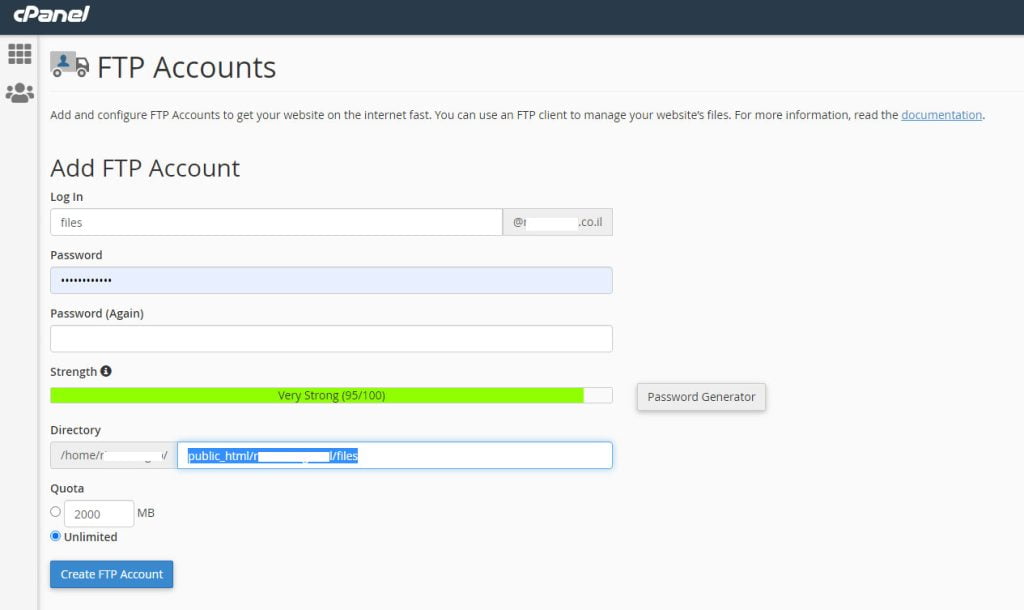
- To create a new account, you need to set the account name you will use to log in. The name is in the form of an email address (for example, [email protected]), but you do not need to have an email account with this address for the account to work.
- Enter the name in the Log in field - it must be in English and/or contain numbers.
- Enter a password (make sure you enter a strong password - there is an indicator below the password field that shows the strength of the password). You must enter the password twice to ensure that you have typed it correctly.
- Select the folder for the FTP account. The system will automatically create a subfolder with the name you chose, but in most cases you want the FTP account to have access to all the folders on the storage server, so you need to delete the account name from the directory field. For example, if this field contains: public_html/domain.com/files, delete files, which is the account name we chose in the example above. This will create an FTP account that has access to the website's main folder.
- In the Quota field, you can limit the amount of storage space that can be used with this account. If this is an account you are creating for yourself to manage all the files on the server, then select the Unlimited option.
- Click Create FTP Account.
- If you have entered all the details correctly, a message will appear stating that the account has been successfully created. At this point, you can scroll down a little to the FTP Accounts section and see that the account has been created. To see what you need to enter in your FTP software, click Configure FTP client.